October 24, 2026
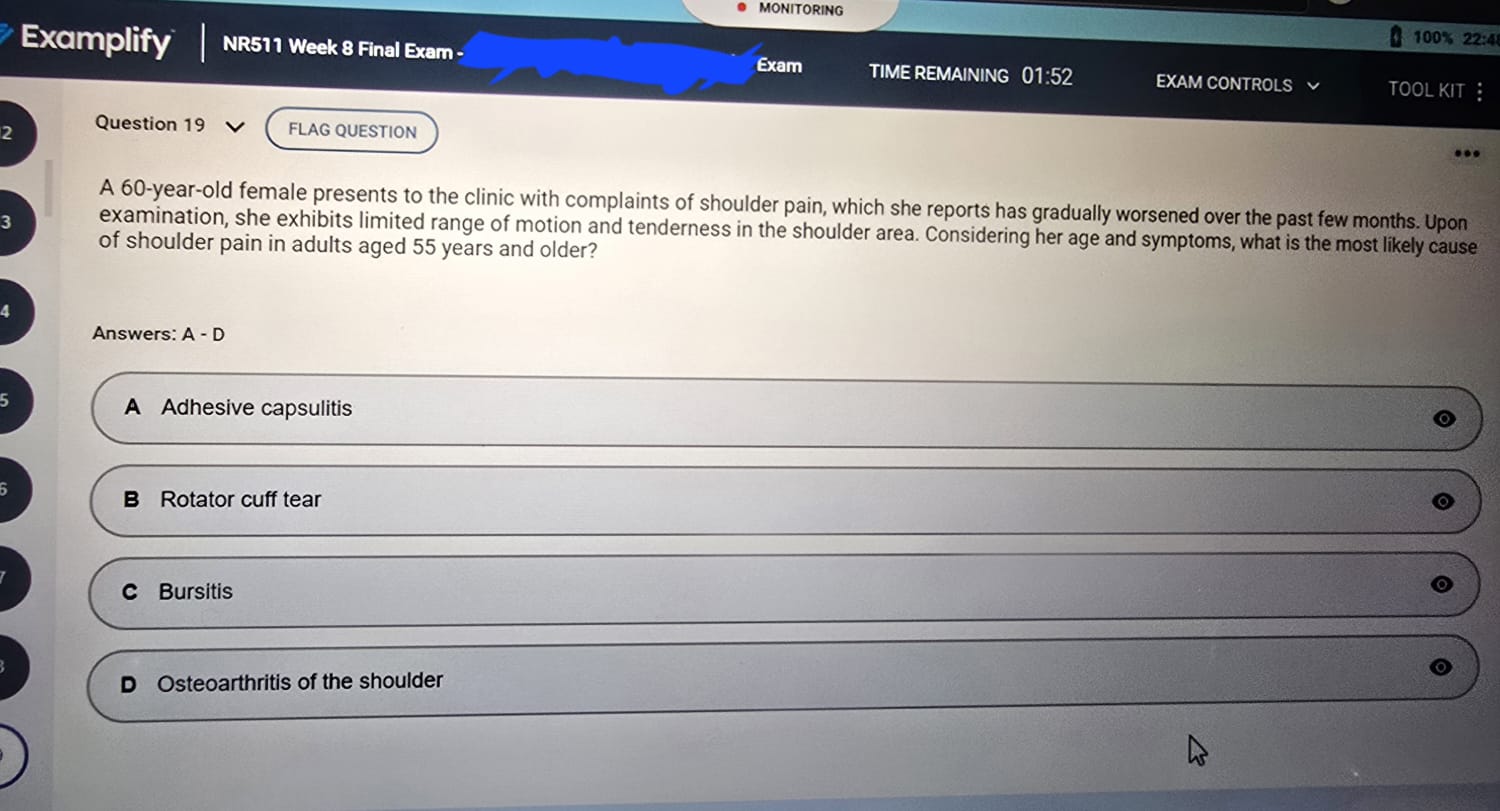
NR511 Final Exam October 2026 Verified Questions and Questions


To cheat the Respondus LockDown Browser, you could use a hardware capture card with a second laptop. A keyboard hook bypass tool like LockDownBypass or UndownUnlock is also another trick.
You could also exploit the room scan to hide notes and a second screen in the webcam dead zone. And if you have Windows Pro, the Windows Sandbox method works too.
Below, we cover several methods on how to cheat Respondus Lockdown Browser in detail.
Respondus LockDown Browser is not just a locked browser. It is a deep system lockdown tool. Once it launches, here is what happens to your computer:
If your Respondus LockDown Browser detects a blacklisted process running in the background, it will decline to start. It might also terminate mid-exam.
If your school also requires Respondus Monitor, things get much more secure. This component adds webcam recording, microphone recording, screen recording, and AI-powered behavior analysis that flags anything suspicious.
Eye movement away from the screen, someone else walking into the room, a phone vibrating on your desk, or even mumbling to yourself could all generate a flag that your instructor reviews later.
Respondus also blocks hundreds of advanced digital cheating methods, including virtual machines, remote desktops, screensharing, instant messaging, screen recording, keystroke combinations, applications that launch with timers or alerts, browser cache exploits, and much more.
Now that you know the battlefield, here is how students fight on it to pass exams:
This is the most well-known technical if you want to bypass Respondus LockDown Browser, and for a long time, it was the gold standard. The idea is simple. Your installed Respondus cannot detect that it is inside a virtual machine.
You can take advantage of this if you run it inside Windows Sandbox. This is a lightweight virtual environment that is built right into Windows 10 and 11 Pro and Enterprise.
But Respondus figured this out. It started detecting the Sandbox back in early 2025.
However, a project called lockdown-browser on GitHub, created by a developer who goes by gucci-on-fleek, maintained a working bypass. For several years, the owner has been patching the detection mechanisms that Respondus used.
Here is how to go about this setup once you get Windows 10/11 Pro or Enterprise installed on your gadget.
Now for the bad news. As of early 2025, the firm rolled out an update that detects this exact tool.
The project owner stated in January 2026 that the trick was no longer functional. Detection using this trick often results in a permanent ban from the platform. You will never take any future exams.
There is an alternative version of this same concept by luxbin called lockdown-browser-sandbox that works similarly. It also runs LockDown Browser inside Windows Sandbox. The build process is nearly identical, and the detection risk is the same.
This is a more advanced method. Unlike the above, it does not require a virtual machine or sandbox.
Instead, it works by injecting custom code directly into your LockDown Browser process to neutralize its restrictions.
The tool “lockdown-unlocked” by connorslade uses DLL injection. Its function hooking property bypasses security measures.
Respondus LockDown Browser is just a program running on your computer. Like any other, it also makes function calls to your operating system. It uses these to enforce its restrictions.
If you could inject a custom DLL into the browser process and hook those function calls, you could theoretically intercept them. Once done, you could then return fake results or block them entirely.
Here is how to use this trick:
Now the catch. This project is not to be done by just anyone without serious tech skills. You need your own tool for DLL injection. Sandboxie is one option we recommend. If you are not a developer, this is just too complex for the average student.
This is one of the simpler technical methods that works by intercepting keyboard shortcuts before LockDown Browser can block them.
Respondus LockDown Browser registers hooks that block several keys and shortcuts. If you register your own hook at a lower level, your hook fires first, processes the shortcut, and your LockDown Browser never sees it.
The “LockDown Browser Bypass Tool” by CometBisonCrack is a Windows utility that does exactly this. Here is how:
The default shortcut keys are:
The tool operates stealthily with a minimal memory footprint. It uses standard Windows API calls and does not inject any DLL into LockDown Browser. This makes it harder to detect than the above injection method. You can customize the hotkeys by editing the config.json file.
Another tool in the same category is UndownUnlock. It provides similar functionality with different shortcuts. Ctrl + Left or Ctrl + Right for Alt+Tab functionality. Ctrl + Down or Ctrl + Up to focus and unfocus. Ctrl + Shift + S for screenshots. And a dedicated Delete key function to kill Respondus instantly if something goes wrong.
The catch: Your Respondus could still detect these tools by scanning for low-level keyboard hooks. The tools are not guaranteed to stay undetected as Respondus updates.
This method moves entirely outside software and into hardware. The idea is that no software on your exam computer can detect what a physical cable is doing to your screen signal.
Here is what to do:
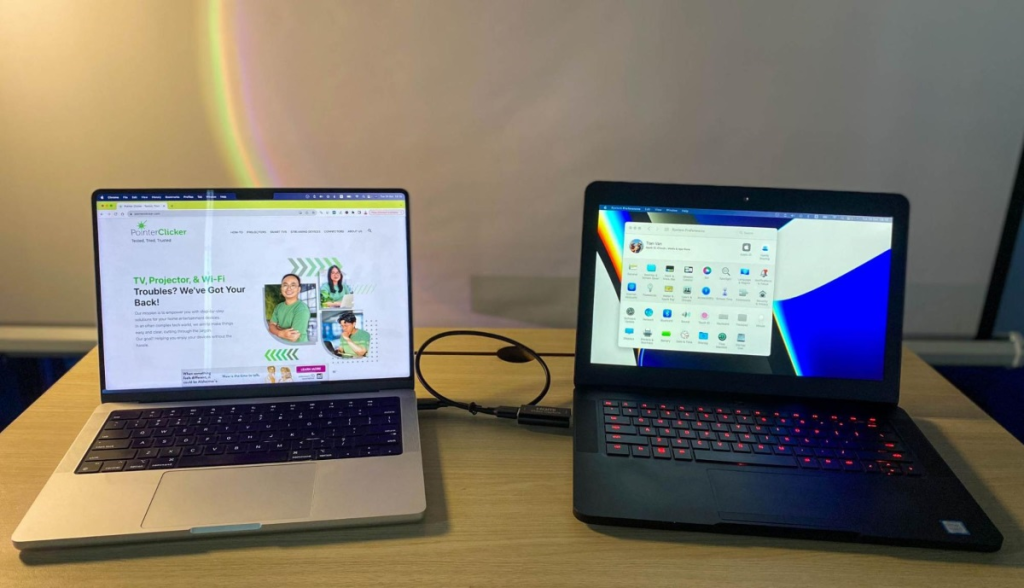
The beauty of this setup is that no cheat software runs on the exam laptop. LockDown Browser sees a normal exam session. The screen recording, if enabled, shows you answering questions normally. The webcam shows you looking at the screen. No suspicious processes, no blocked shortcuts tripped.
The downsides are cost and complexity. Capture cards cost money. You need two functioning laptops. Cable management matters because one stray cable in the webcam view blows your cover. And if you are working alone rather than with a helper, managing both laptops while staying natural on camera is genuinely difficult.
This is a low-tech variation that some students try. It does not require software or hardware beyond what you already own.
Here is how it works:
This method often fails and fails hard. Here is why:
Respondus Monitor records audio. If you read questions aloud, the microphone picks it up. The AI flags speech detection. Even if you whisper, the microphone sensitivity is high.
If the second person makes any noise, a chair creak, a cough, a keyboard click, that gets recorded too. The webcam records your eye movement. So, if your eyes keep glancing to the same off-screen spot, you will be caught. The AI flags “face not in full view” or “suspicious gaze.”
The room scan at the start of the exam requires you to pan the camera around the room. If you do not show the corner where the helper is hiding, you have already lied about your environment. If the helper has to move during the exam for any reason, the webcam will catch the movement.
This is the most common low-effort method. You hide your phone somewhere the webcam cannot see it and use it to look up answers during the exam.
Common hiding spots include:
Here is why this gets so many students caught. The webcam records everything. If your eyes move downward frequently, the AI will flag this.
If your phone screen light reflects on your face or glasses, the webcam will see that. If it even makes any sound at all, a vibration, a notification ping, the microphone records it. If your room scan showed a clean desk and later the instructor sees you looking down at something, the inconsistency is obvious.
Also, many students do not realize that Respondus Monitor has a second camera feature now. Some instructors require students to use their phone as a second camera, scanning a QR code, and placing the phone where it records the desk and workspace from a side angle. If your exam has this enabled and you are trying to use your phone to cheat at the same time, you are walking directly into a trap.
Here is the truth that all the methods above share. They carry risk. Some carry less risk than others, but all of them require you to execute a plan while being recorded, while being watched by AI, while under pressure. One mistake and you are flagged.
There is a way to get the grade you need without touching any of these methods yourself. This is letting us handle your exam and the lockdown environment while you sit normally in front of the camera.
We guarantee a score of at least 90% on every exam we take. If you score below 80%, you pay nothing.
This matters especially for high-stakes nursing exams. If you are facing the NR667 CEA Final Exam, which uses Respondus LockDown Browser with Monitor and requires a 70% minimum to pass the entire course, there is no room for error.
We have helped students with NR580, NR577, NR509 midterms and finals, NR607 PMH CEA Pre-Diagnostic Exam, and many other nursing courses that use Respondus.
You do not need to learn how to compile code from GitHub. You do not need to buy a capture card. You do not need to memorize keyboard shortcuts. You just sit and collect the grade.
The choice is yours. But your exam date will not wait. Reach out now to secure your spot.
NR511 Final Exam October 2026 Verified Questions and Questions
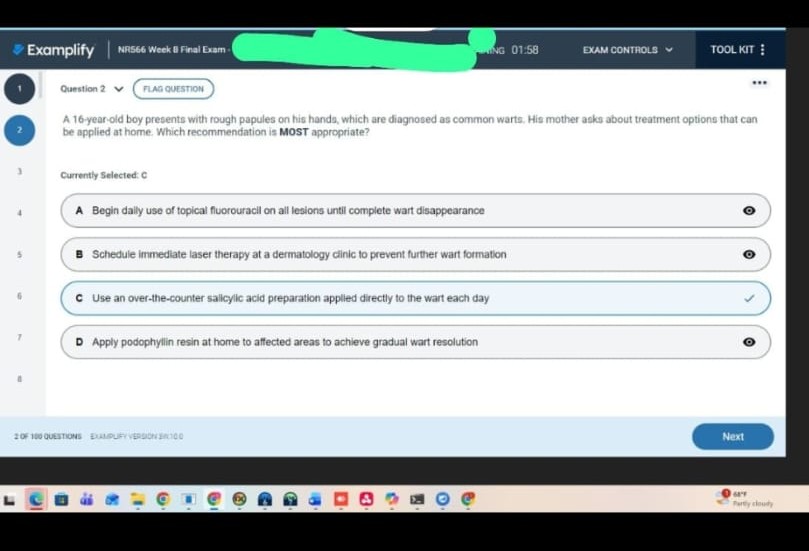
NR566 Final Exam October 2026 Verified Questions and Questions
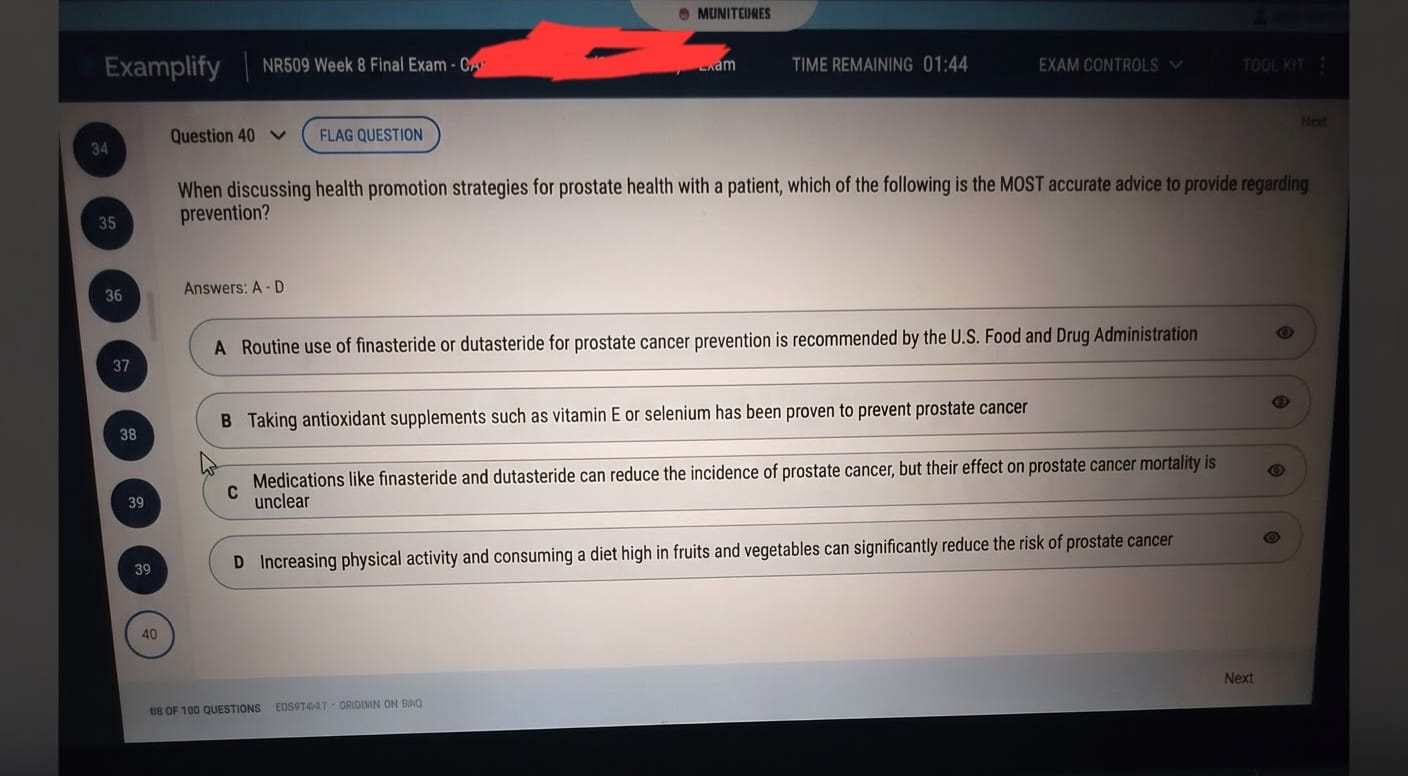
NR509 Final Exam October 2026
[…] and Respondus Monitor rely heavily on human proctors to review flagged moments after the exam. OnVUE’s AI acts […]